4.8 How to configure storage
You can configure the storage settings to set the frequency for creating a new log storage unit, the number of storage units that must be retained in the live database, and the size of the storage unit.
It is important to configure the correct values for storage and retention. If they are incorrectly configured, log collection might be impacted. For example, if the expected log size per day is 1GB, and the retention period is 6 months, then the maximum storage unit size must be 180GB.
The more the size of the storage unit, the more time it takes to create backups and restore. It is recommended that you plan at least an additional 6x (storage unit size) space on the data drive. For example, 10 GB size rollover must have 60GB additional space.
Procedure
-
In the navigation pane, navigate to Configuration > Storage / Backup.
-
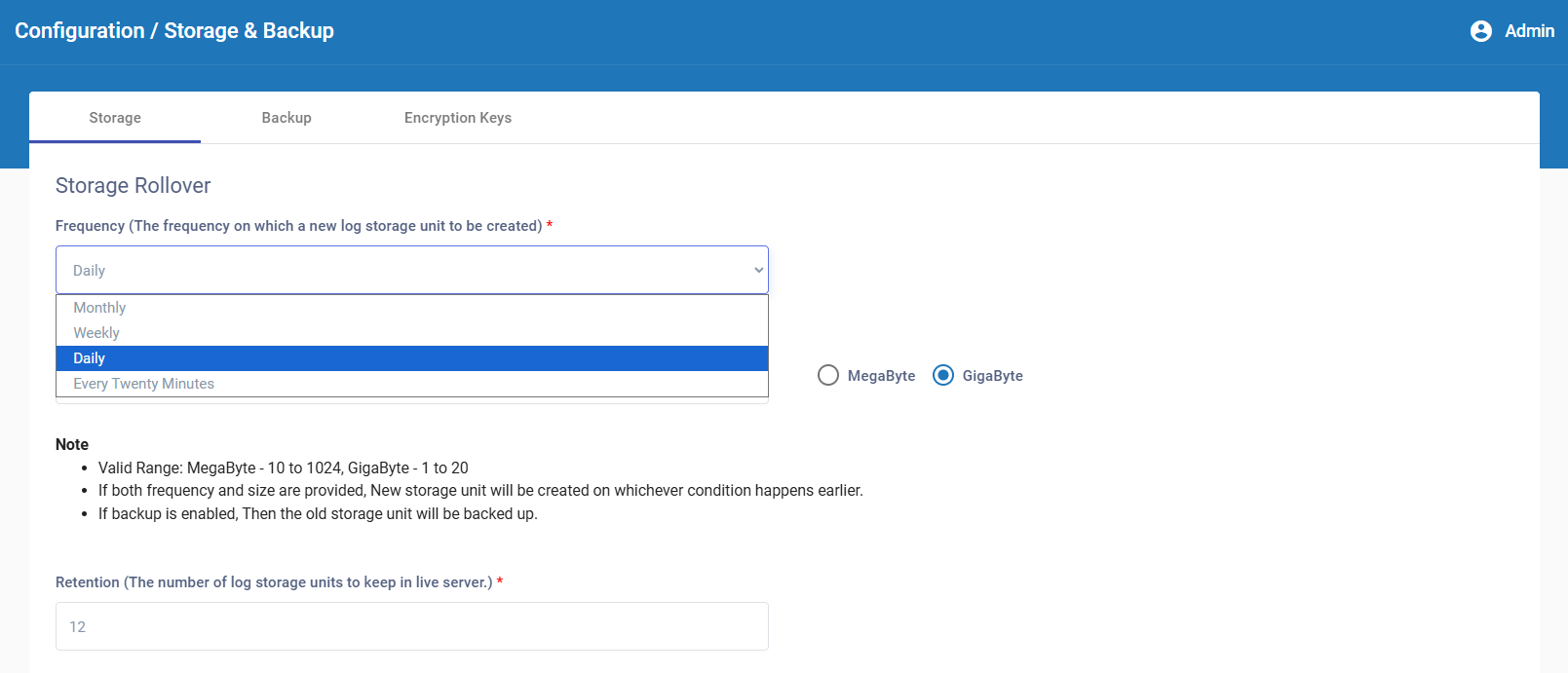
In the Storage tab, set the frequency for creating new storage units for storing log files. The options are: every twenty minutes, daily, weekly, and monthly.
-
Enable the option to set the Size of the storage unit and enter the maximum size of the storage unit in either MB or GB. The valid range for storage units are either 10-1024MB or 1-20GB.
Note: If both, frequency and size are specified, new storage units are created based on the condition that occurs first. If backup is enabled, the old storage unit is backed up.
-
Enter the maximum number of storage units that can be stored on the live database. The minimum number of units is 1 and the maximum is 250.
Note: Storage units older than the retention configuration are automatically deleted. If backup is enabled, storage units older than the retention configuration are backed up before deletion.
-
Click
 .
.