4.17.1 How to configure Scheduled Export
Scribbler supports scheduled export of logs.
Procedure
-
In the navigation pane, navigate to Configuration > Export Logs > Scheduled Export tab.
-
Enable Scheduled Export.
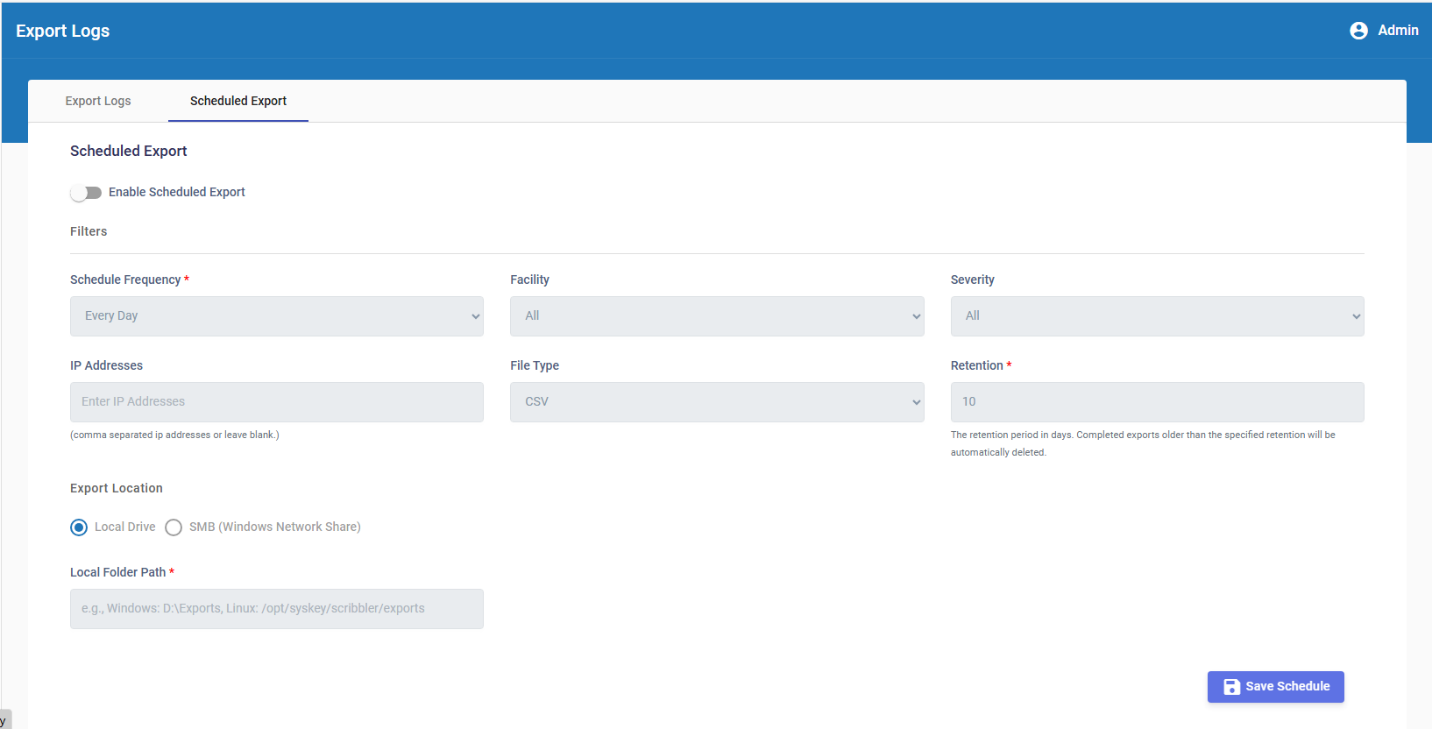
-
Specify filter criteria for exporting logs:
- Schedule Frequency -> The interval at which the export process runs automatically. Contains three options: Every day, Weekly, Monthly.
- Facility -> Logs received from the selected facility will be exported.
- Severity -> Logs received from the selected severity will be exported.
- IP Addresses -> More than one IP can be given. Logs from the given IP address / IP addresses will be exported.
- File Type -> Export logs in the selected file format. Two formats available 1.CSV 2.XML
- Retention -> Retention period must be specified in days. Exported file will be stored for the specified number of days.
-
Specify the Export Location -> The storage path where the exported log files will be saved. It contains two options:
- Local path -> The directory path on the local system.
- Local folder path -> Specify the local path.
- SMB (Windows Network Share) -> A shared folder on a windows system that can be accessed by the other computers on the network using SMB.
- UNC Path -> A Universal Naming Convention path that specifies the location of a shared folder or file on a network. Enter server name followed by share name (
\\servername\share). - User Name -> The account name used to authenticate and access the shared network location.
- Password -> Enter password associated with the username.
- UNC Path -> A Universal Naming Convention path that specifies the location of a shared folder or file on a network. Enter server name followed by share name (
- Local path -> The directory path on the local system.
-
Click Save Schedule.
- Scheduled reports will be auto exported during the scheduled frequency & allow the user to download the report.