4.14 How to Configure Hostname Detection
There are cases where detecting or resolving the hostname of received log messages is important. By default, Scribbler can detect the hostname using the operating system’s default DNS configuration.
However, this can be overridden and customized based on customer requirements.
Procedure
-
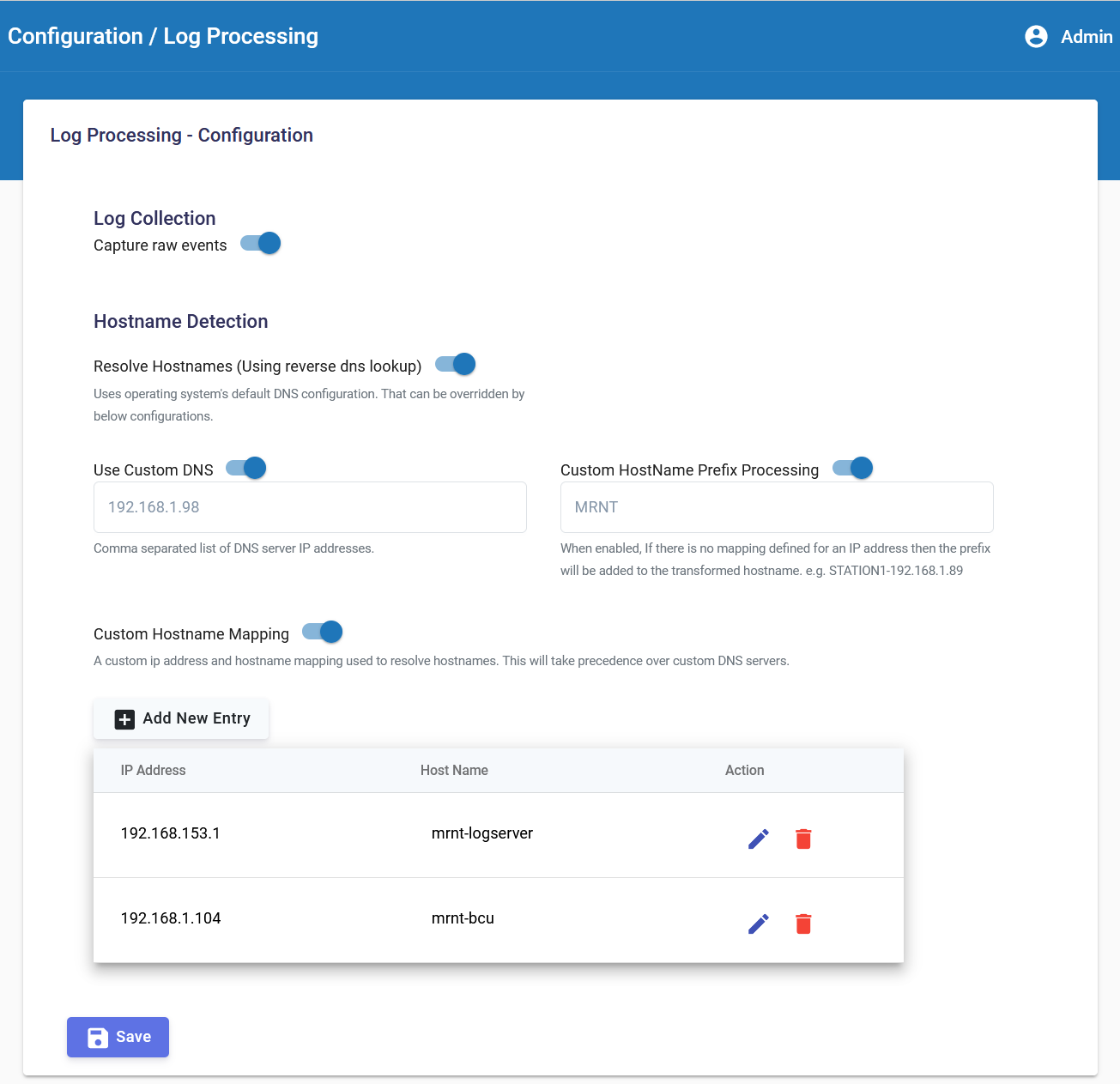
In the navigation pane, navigate to Configuration > Log Processing
-
Enable – Resolve Hostnames
a. Enables hostname detection using the operating system’s default DNS and hosts file configuration.
b. This is the default setting. -
Enable – Use Custom DNS
a. Enables custom DNS servers to perform reverse DNS lookups to obtain hostnames. This overrides the operating system-configured DNS servers.
b. Multiple DNS server IP addresses can be provided as comma-separated values.
c. DNS entries are cached locally for performance reasons. Newly added DNS mappings may take a minimum of 15 minutes to reflect in Scribbler. -
Enable – Custom Hostname Prefix Processing
a. When enabled, if the system is unable to detect the hostname for an IP address, it adds a prefix to the IP address.
b. This is useful for adding a default station/project/office name when no DNS mapping exists for a specific IP address. -
Enable – Custom Hostname Mapping
a. When enabled and custom IP-to-hostname mappings are provided, the system checks this configuration before performing any other name resolution.
b. IP addresses must be unique.
c. Hostnames must be valid hostnames or fully qualified domain names (FQDNs).