4.9 How to configure backup
Scribbler allows configuration of the backup storage location, with options to compress and encrypt backup files for enhanced security.
Note: Encryption and Compression are high CPU intensive operations. These configurations must be enabled only if necessary.
It is strongly recommended that you keep a separate copy and history of encryption keys and ID combinations otherwise the backup files will be unreadable in case of disk failures.
Procedure
-
In the navigation pane, navigate to Configuration > Storage / Backup.
-
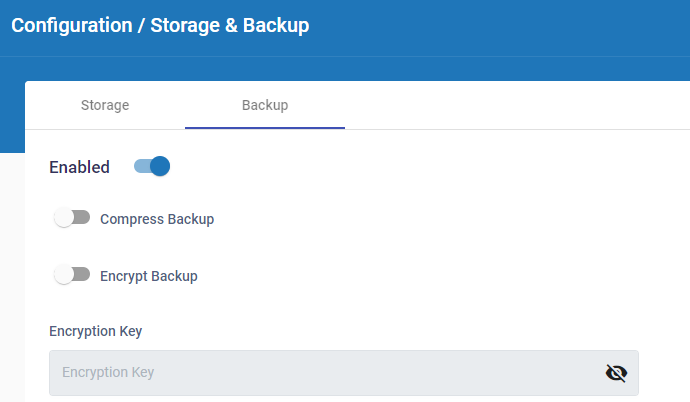
In the Backup tab, enable Compress Backup to compress all the data in the backup.
-
Enable Encrypt Backup to encrypt the backup data with AES 256 encryption algorithm.
-
If encryption is enabled, you must enter an Encryption Key to access the encrypted backup.
Note: Any encryption change will be applied from the next backup onwards. The existing backups will not be affected by the change. The system can detect the encryption state and process the backup files accordingly. The older encryption keys are maintained by the system so that the older backups can be restored.
It is also recommended for the administrators to preserve the Encryption Key securely and separately from the system. So that in the event of OS corruption the backups can be restored.
-
If retention of backup unit is required, Enable the Backup Retention and provide the number of units to keep in the backup. The older units will be automatically deleted.
-
Choose to store the backup files in the Local Drive or SMB (Windows Network Share).
-
If local drive is selected, specify the local drive path to store the backup. If SMB is selected, specify the user credentials and the server path to store the backup.
-
Click
 .
.