5.2.2 Collection - WEF
-
Windows Event Forwarding (WEF) is a built-in feature of Windows that allows to collect and forward event logs from multiple Windows devices to a central windows machine. And the SyskeyOT Windows Agent can collect the events from that central windows machine and forward it to the Scribbler.
-
WEF has some complex requirements like ADDS (Active Directory Domain Services), WinRM and https with proper certificates for non-domain computers to work properly.
-
The following procedure explains how to setup WEF in source-initiated mode. For other types of setups and configurations, refer to the Microsoft documentation.
Technical Background
-
WEF is a service that allows you to forward events from multiple Windows servers and collect them in one spot. The service has two main components; a forwarder and a collector. A collector is a service running on a Windows server that collects all events sent to it by an event log forwarder.
-
The “link” between the forwarding server and a collector is known as a subscription.
-
Collectors serve as subscription managers that accept events and allow you to specify which event log alerts to collect from endpoints.
Environment & Requirements
-
One Windows Server instance – To act as a collector. Windows Server instance of 2012 R2 or higher.
-
One Windows Server / Client – Windows 10 or Higher
-
Active Directory
-
GPO – A familiarity with Group Policy Objects will be required.
-
WinRM - WinRM needs to be running on all clients.
Step by Step Configuration
Enable WinRM on Server and Client Machines
Refer to the official Microsoft documentation for detailed steps:
Installation and Configuration for Windows Remote Management
Initialize Collector Server
-
Start the Subscription Collector Service on the collector server.
-
Ensure the Collector Service is set to start automatically when Windows Server boots up.
-
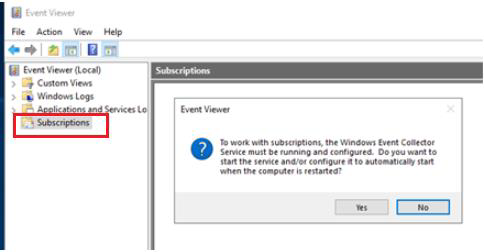
On the collector, open Event Viewer → Subscriptions.
- The first time you open the Subscriptions option, Windows will ask if you want to start the Windows Event Log Collector Service and configure it to start automatically.
- Click Yes to accept.
-
The collector is now configured.
Setting up the Forwarders' GPO
-
The next step is to configure one or more Windows servers to begin forwarding event logs to the collector. The easiest way to do so is by creating a GPO (Group Policy Object). This GPO can then be applied to one or more OUs which contain the servers to send events from.
-
Windows Event Forwarding (WEF) uses the Network Service account to read and forward events from a forwarder to a collector. By default, this account does not have the required permissions to perform this operation. Therefore, the appropriate Access Control List (ACL) must be configured to grant the necessary access.
-
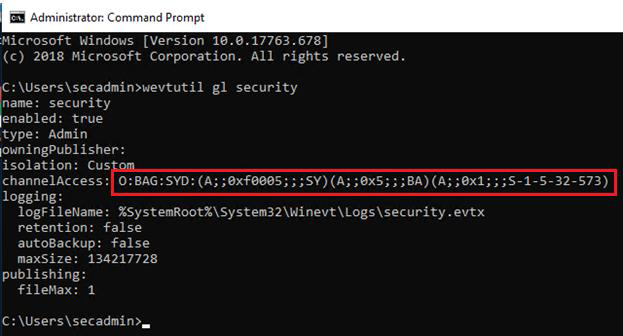
Begin by opening up a command prompt and run wevtutil gl security. This will provide various information about the Security event log. But the piece to pay attention to is the channelAccess SDDL.
-
Refer to the example below for the Security event log SDDL configuration. The channelAccess entry defines the permissions applied to the event log. The highlighted SDDL value should be copied and saved for later use when configuring a Group Policy Object (GPO).
-
Create a GPO via the Group Policy Management Console. Inside of the GPO, navigate to:
Computer Configuration → Policies → Administrative Templates → Windows Components → Event Forwarding → Configure target subscription manager. -
Set the value for the target subscription manager to the WinRM endpoint on the collector.
-
Set the Server to be in the format:
-
Server=http://<FQDN of the collector>:5985/wsman/SubscriptionManager/WEC, Refresh=60
-
Note: The Refresh interval at the end of the collector endpoint. The Refresh interval indicates how often clients should check in to see if new subscriptions are available.
-
-
Next, find the SDDL you copied earlier from running wevtutil gl security and paste it into the setting:
Computer Configuration → Policies → Administrative Templates → Windows Components → Event Log Service → Security → Configure log access.
-
Link the GPO and apply it to the required computers.
Setting up Subscription in Collector Server
-
It is good practice to forward only required events using event filters to reduce noise and traffic to the collector server. That can be achieved through subscription event filters.
-
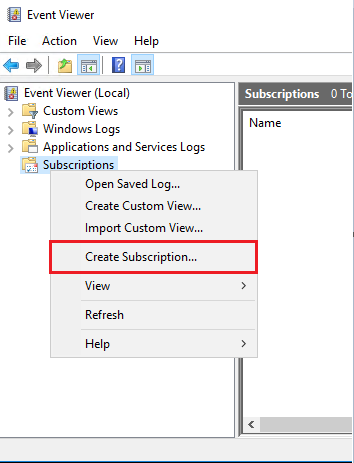
On the collector, open the Windows Event Viewer, right-click on Subscriptions, then select create subscription.
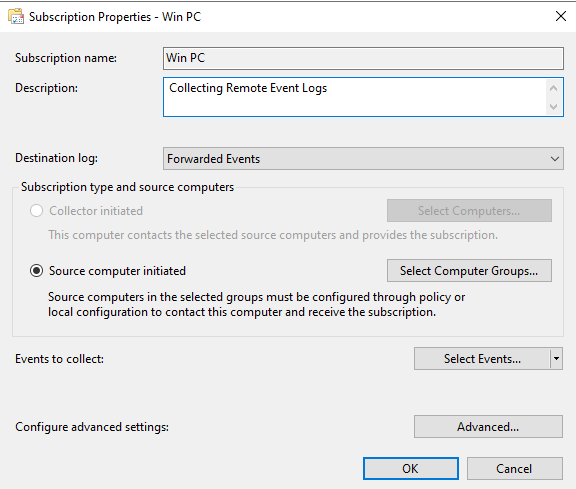
- As shown below, select Forwarded Events as the Destination log. Then, choose the Source computer initiated option and click Select Computer Groups. This is where the computers from which events will be forwarded can be selected.
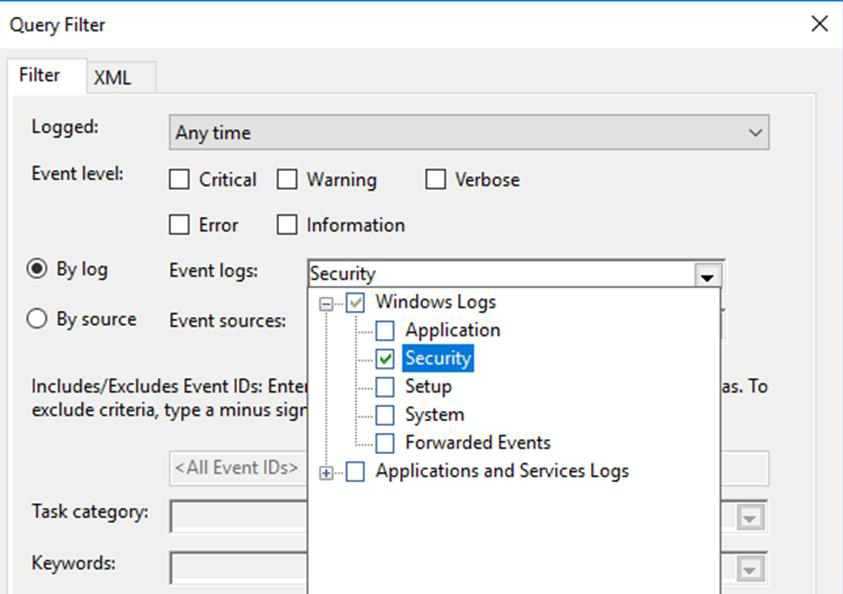
- Next select the events to forward. Open the query filter as shown below, select the required sources and filters condition to forward events to the collector.
-
Click OK to exit from the Query Filter.
-
Click Advanced in the Subscription Properties window, then select Minimize Latency. This setting ensures that the collector receives events as quickly as possible and helps it catch up if it falls behind.

Verifying the WEF Configuration
-
Once WEF is set up, Check the forwarders are working by checking the Source Computers column on the main Subscriptions page of the collector.
-
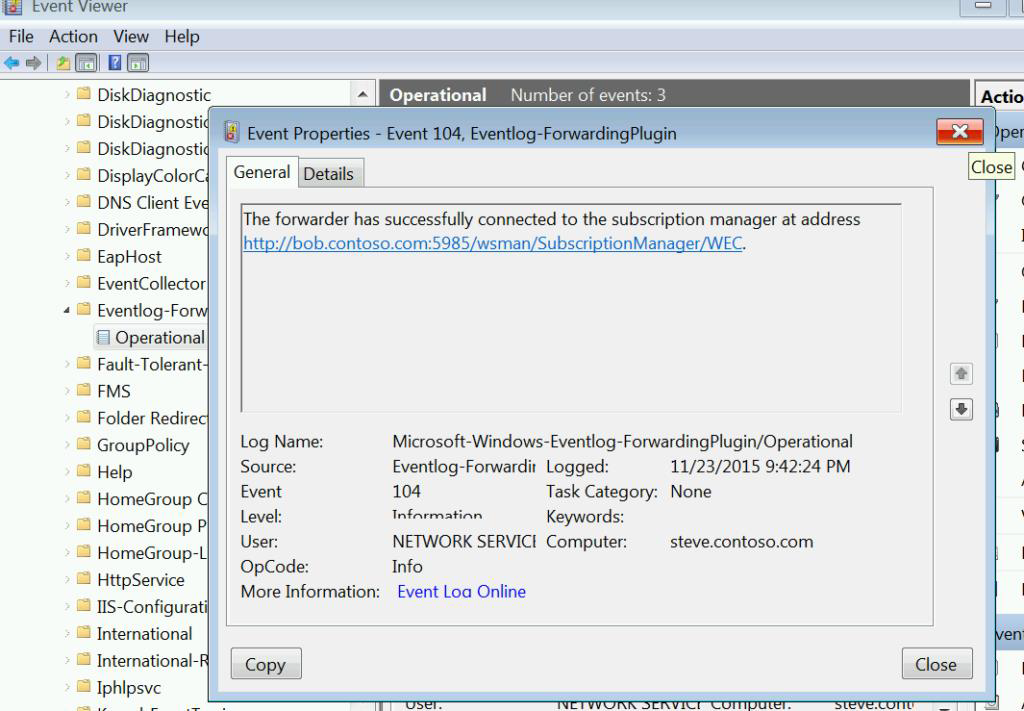
Also check the Event Forwarding Plugin Operational log under Applications and Services on the client to make sure everything is working. This is where you’ll see descriptive errors if something has gone awry with Kerberos or firewalls.
- Windows Event Forwarding (WEF) setup is now complete. Next, configure the SyskeyOT Windows Agent to collect logs from the collector server.
Setting up SyskeyOT Windows Agent
-
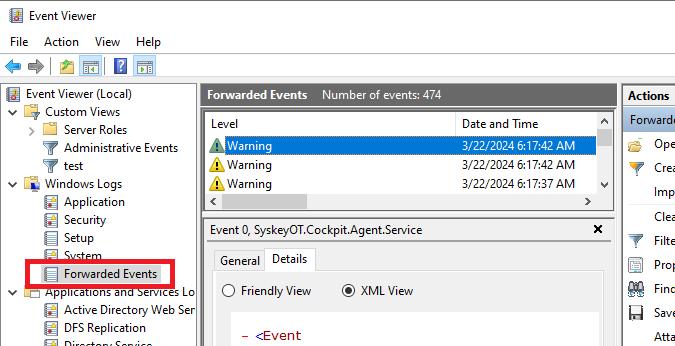
The WEF collector server stores all events from remote machines under the Forwarded Events section in Event Viewer, as shown below.
-
Install the SyskeyOT Windows Agent on the collector server and open the agent.
-
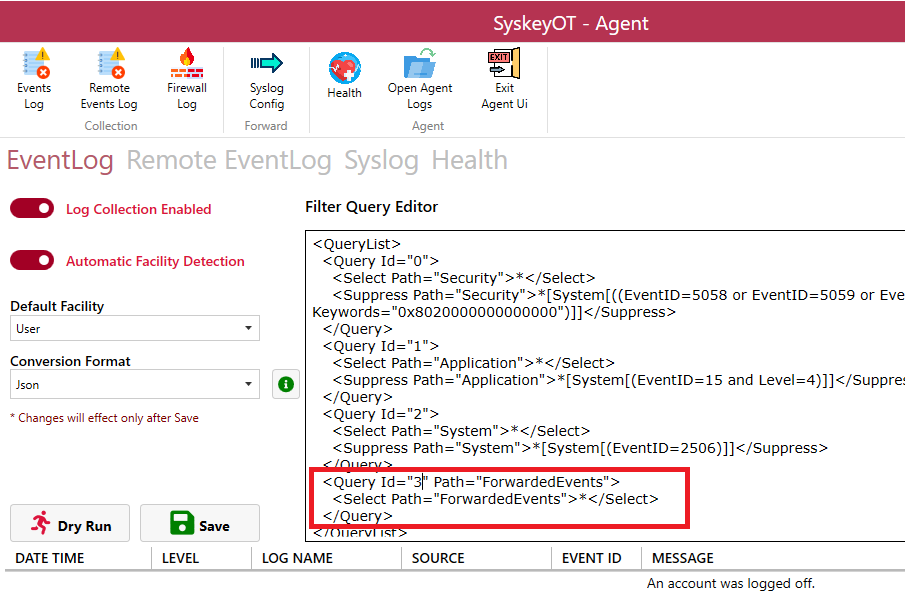
Goto Event Log page as shown below. NOT the Remote Event Log. And add the forwarded events filter as shown below. Refer section How To Set Event Log Filter for more details.
-
The SyskeyOT Agent now reads the collected events and forward that to scribbler as configured.