5.5 How to configure log collection from Plain Text files
SyskeyOT Agent does support collection of logs from plain text log files created by various applications like Scada systems, ….
The file path, format of the logs and datetime must be configured to collect the logs from text file. To handle different log formats, The SyskeyOT Agent supports the concept of Grok patterns.
A Grok pattern is a technique to parse and structure unstructured log data. Grok uses regular expressions combined with pre-defined patterns to extract specific data fields from log messages. It simplifies log processing by matching patterns to identify components like timestamps, IP addresses, log levels, etc.
For example, a pattern like %{IP:client_ip} %{WORD:method} %{URIPATHPARAM:request} extracts the client IP, HTTP method, and request URL from a log line.
Grok patterns help convert raw log entries into structured data.
Procedure
- In the top navigation pane, Click on the Plain Text Log
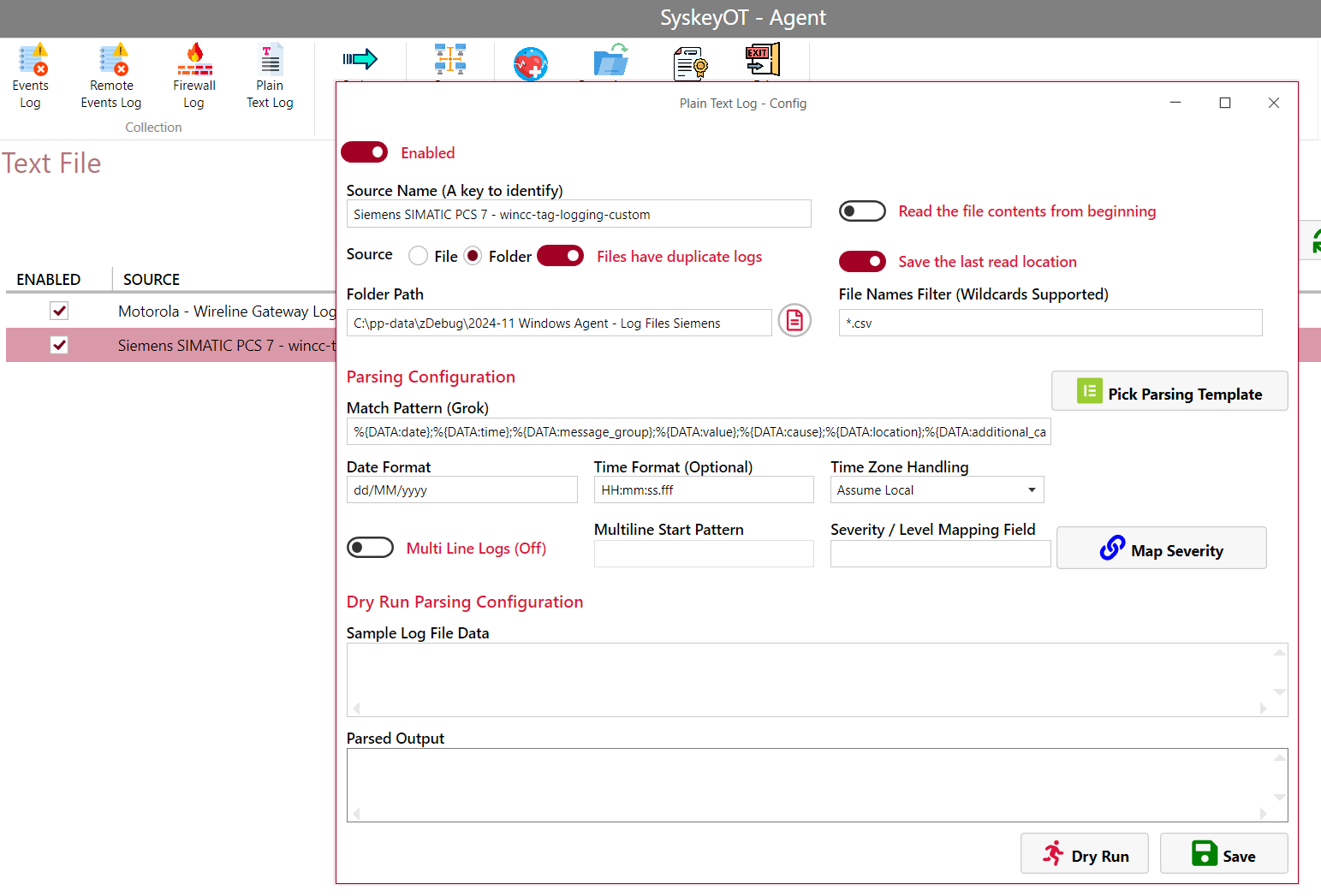
- Click the "Add New". Which will open a window like above.
- Provide the following details
Source Name – A name to uniquely identifies the source of the log
Source - Specifies the location from which the logs are to be retrieved. The source can be either a local location or a SMB (Server Message Block) share.
- File – Collect logs from single file. Open the file and listen for changes and collect continuously from the file. Preferred when the name of the file did not get changed.
- Folder – Collect logs from multiple files from a folder. Preferred when an application generates different files per day / per hour. i.e. The app creates file1.log, file2.log and so on. In that case it is preferred to enable Folder based collection
Local & SMB
File / Folder Path – The path of the file where the logs to be collected. The system will automatically take care of file rollovers. (i.e. source application deletes and recreates the file)
Files have duplicate Logs – Applicable for folder-based collection only. When new files created in the folder contain old logs, enabling this correctly handle repeated logs in the new file by skipping those.
File Name Filters - Applicable for folder-based collection only. A wild card file filter can be set to include only those files matching the criteria for log collection.
Process first line / Skip first line (Header) – Setting to indicate whether the system should skip or include the header in the first line of the file.
Read only new content from end – Setting to indicate whether the system only listens and collect the new logs from now on or should collect everything from the file. The default is disabled. i.e. by default the system reads all entries from start.
Save the last read location – Setting to indicate whether to bookmark the last position. This setting is important so that the system resumes properly from where it left off due to a service restart or OS restart. If this is disabled, there is a chance that logs generated when the Agent Service was offline got be omitted.
Match Pattern – Grok pattern to match the log entry in the file. Refer the Appendix 1 for the list of supported grok patterns. It can also be a valid regex with capture groups. The captures must contain following names
- "DATE" or "DAY" and "MONTH" and "YEAR"
- "MESSAGE"
- "TIME" → is optional
- The system extracts the date and time as specified in the capture groups and apply timezone rules and constructs the date.
Date Format – The format of the date and/or time in the log message. So that the dates will be parsed correctly. Refer Appendix 2 for more details.
Time Format – This is optional, If the log message's date and time are located at different place, Then the grok expression may have different keys for DATE and TIME. In that case the time format is required. If the DATE contains time then there is no need to define the time format.
Time Zone Handling
- Assume Local → The log data does not have Time zone information. Assumes the time in the log file is in local time zone
- Assume Utc → The log data does not have Time zone information. Assumes the time in the log file is in UTC (universal coordinated time ) time zone (00:00).
- Assume Custom Offset → The log data does not have Time zone information. Assume the time is in a custom offset. Provide the offset value e.g. "-04:00", "-05:30",..
- Assume Custom IANA TimeZone → The log data does not have Time zone information. Assume the time is in a specific IANA timezone id. e.g. "Asia/Dubai", "America/New_York"
- Data Has Offset → The log data has the time zone offset. Make sure to provide the timezone parsing string in the time / datetime pattern. Refer the appendix for more details.
- Data Has IANA Time zone → The log data has the time zone Id. Make sure to provide the timezone parsing string in the time / datetime pattern. Refer the appendix for more details.
Multi Line Logs – Multi line logs Lines are grouped into a single log entry starting at each line that matches the Multiline Start Pattern, until the next matching line begins.
- Multiline Start Pattern – The pattern used to identify the start of a new log entry when a single log entry spans multiple lines.
Severity / Log Level Mapping Field – In the log message has a level / severity field which has to be mapped to syslog severity, provide the field name and define the mapping by clicking "Map Severity" button. For example, refer the parsing template "Qognify VMS -> Client Log".
Output Format - The Output Format controls how a parsed log line is written into the message sent to the destination.
- Json – Logs are formatted into a single JSON object containing EventTime, Host, Source, and all fields extracted using the Match Pattern (Grok), including Message. If parsing fails, the raw log line is sent as Message.
- Simple Format – Logs are formatted as a single line of plain text based on the Simple Format Output Pattern, with placeholders replaced by extracted field values. If no pattern is specified, the default format
Host=<host> Message=<message>is used. Unmatched placeholders remain unchanged.
Note: The Simple Format Output Pattern field is displayed only when Simple Format is selected.
- Pick from Template SyskeyOT Agent already provides a list of grok pattern, date format, time format required to process different type of log files. Which can be picked from the template instead of writing a custom one.
Filters - Opens a dialog to define regular expressions that control which lines from the file are collected, based on their content (independent from the Match Pattern field used for parsing).
- Include Filters
- Exclude Filters
SMB:
SMB (Server Message Block) is a network file-sharing protocol used by Windows to let one machine read/write files on another machine's shared folder over the network.
To configure SMB all the fields are common except the following
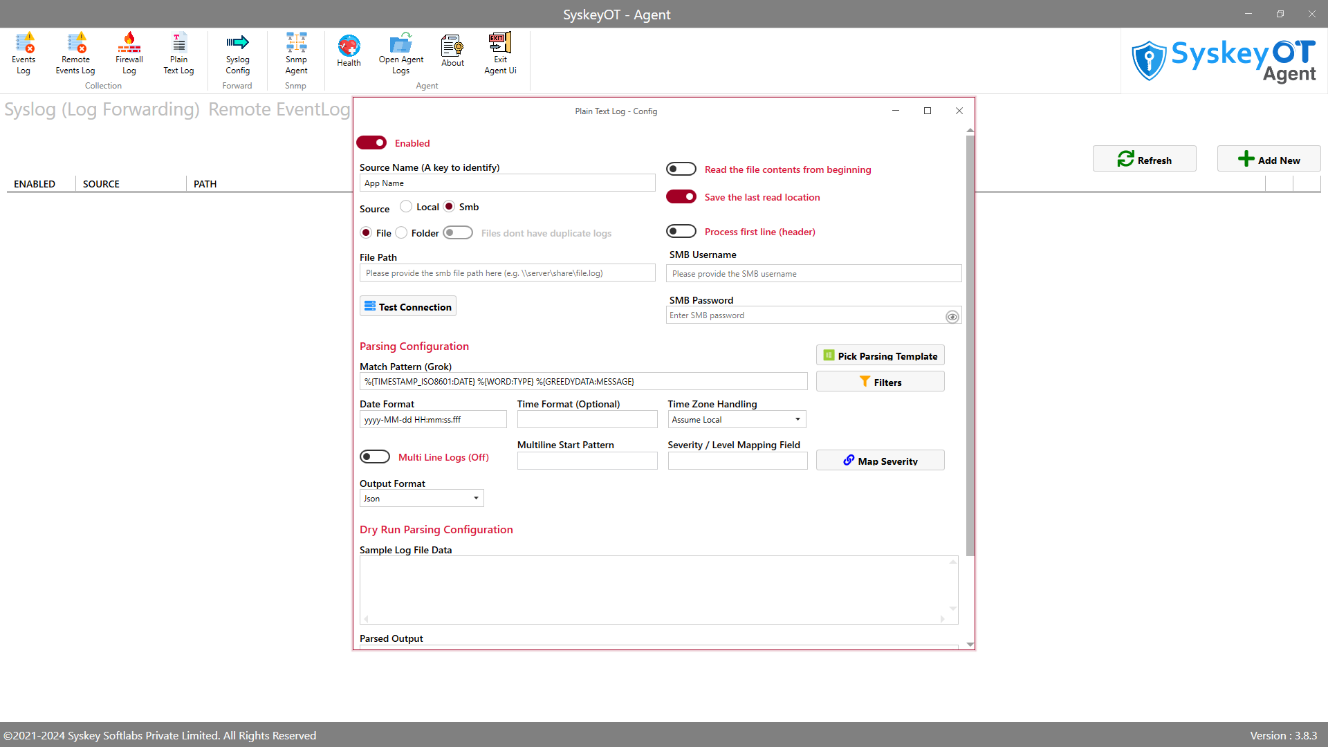
File Path – The path to the directory or log files available on the SMB share (e.g., \\server\share\file.log)
SMB Username – The username required to access the specified SMB share
SMB Password – The password required to establish an authenticated connection to the SMB share
Test Connection – Initiates a connectivity check to verify access to the configured SMB source
Note: The Windows 7 Agent supports SMB connectivity only with Windows 7 machines, whereas the Windows 7+ Agent supports SMB connectivity with Windows 7, Windows 10, and Windows 11 machines.
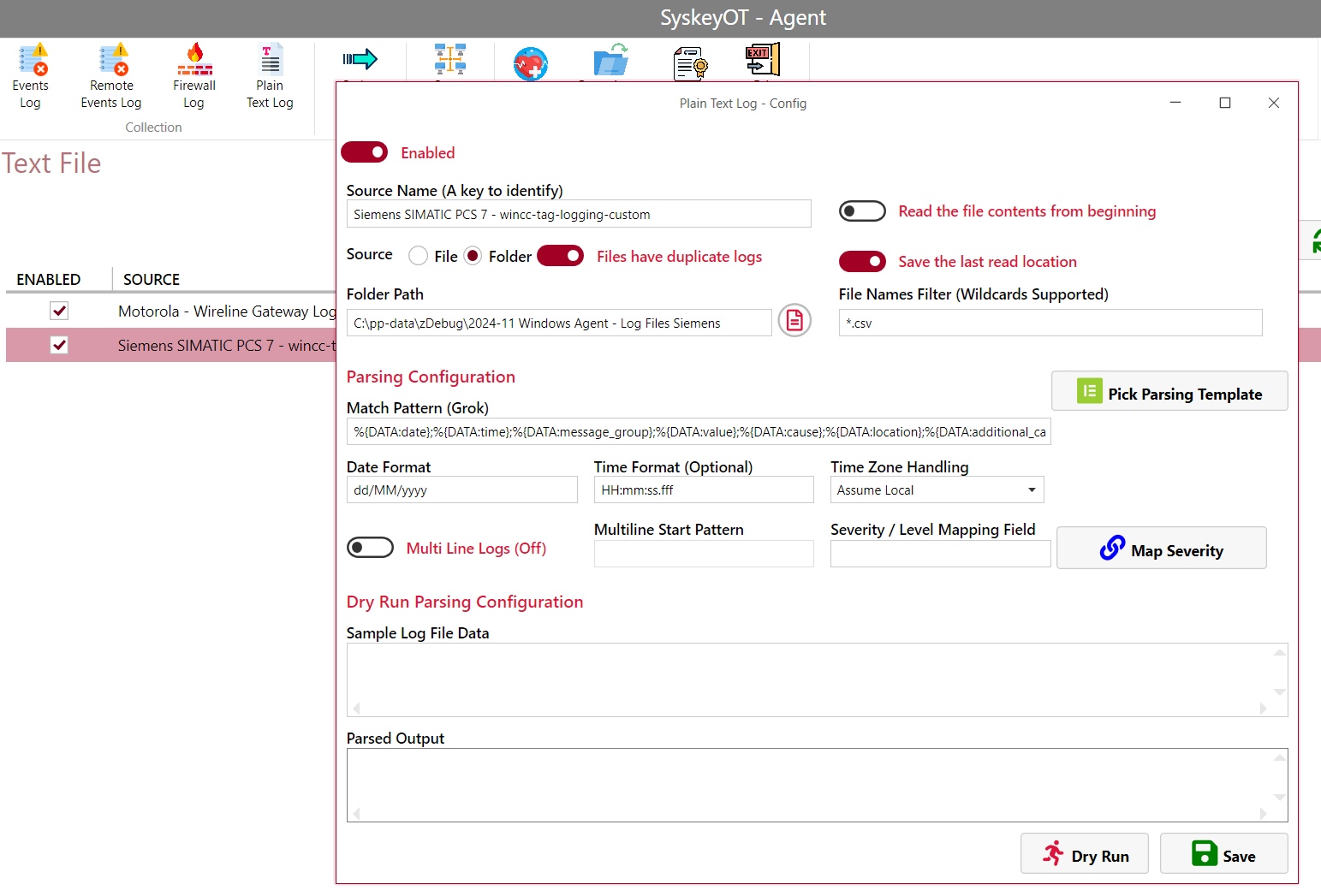
Example 1: WIN CC Project Manager Log File
Log Message:
2024-08-09 08:36:00.667 PM( 5148-12204) CSensSink::ProcessSessionChangeMessage WTS_SESSION_LOGON Called
Configuration:
- Grok Pattern:
%{TIMESTAMP_ISO8601:DATE}\s*%{WORD:TYPE}\(\s*%{WORD:PID}-%{WORD:TID}\)\s*%{GREEDYDATA:MESSAGE} - Date Format:
yyyy-MM-dd HH:mm:ss.fff - Time Format: Not Required
- Time Zone Handling: Local
- Time Zone Offset: Not Required
Parsed Output:
{
  "EventTime": "2024-08-09T08:36:00.667+05:30",
  "Host": "SYSKEYOT-10",
  "Source": "WinCC_Project",
  "Message": "CSensSink::ProcessSessionChangeMessage WTS_SESSION_LOGON Called",
  "TYPE": "PM",
  "PID": "5148",
  "TID": "12204"
}
Note: The Grok pattern should contain labels "DATE", "MESSAGE", "TIME" (optional) for optimal processing. If DATE is split into to multiple locations then the system looks for "YEAR", "MONTH", "DAY" in the pattern to identify. All other keys will be automatically transformed into JSON keys.
Example 2: Qognify Server Logs
Log Message:
VMS Core Server STARTED at Fri Nov 24 07:28:41 EST 2023
Configuration:
- Grok Pattern:
%{GREEDYDATA:MESSAGE} at %{WORD} %{WORD:MONTH} %{INT:DAY} %{TIME:TIME} %{WORD} %{INT:YEAR} - Date Format:
yyyyMMMdd - Time Format:
HH:mm:ss - Time Zone Handling: Assume Custom IANA TimeZone
- Time Zone Id:
America/New_York
Parsed Output:
{
  "EventTime": "2023-11-24T07:28:41-05:00",
  "Host": "SEY-02",
  "Source": "Qognify_VMS_-_VMS_Core_Server_Status_Log",
  "Message": "VMS Core Server STARTED"
}
Important points to consider,
- Since date is split into different places in the log data. DATE capture group is not used. Instead DAY MONTH YEAR pattern is used. Which is combined by the system as YEARMONTHDAY hence the date patter is
yyyyMMdd - Since the message contains non standard timezone abbreviation EST / EDT, The IANA timezone information is required to process the log. Which should be set by Time Zone Handling and Time Zone Id
- The patterns without capture group like
%{WORD}will be ignored in the final result.